How to enable Automatic Version Stepping for product codes






Version stepping improves efficiency and accuracy for our Wholesaler users, so here’s your refresher on how to configure your Erudus account to automatically step up your product codes to the most recent version of a product.
What is Automatic Version Stepping?
Automatic Version Stepping is a feature that was introduced to Erudus with the aim of helping Wholesalers manage their product catalogue more effectively.
Reviewing product changes is critical to maintaining the accuracy of data in Erudus, but the rate at which they occur can lead to it becoming an arduous and time-intensive task for Wholesalers. And so we created automatic version stepping, to make it possible for certain Wholesale users to automate this process or partially assist in this process.
How does Automatic Version Stepping work?
When a Manufacturer makes changes to a product that you have a product code assigned to, you will be notified that a change has been made and will be prompted to either step the code to the latest version or hold your code on the current version.
You can opt in to have your product codes automatically step up to the latest version of a product based on the type of change that is made to a product (minor or major).
Here’s how to do that...
You may also be interested in…


You may also be interested in…
New Feature - Revision & Version Control
ReadStep 1
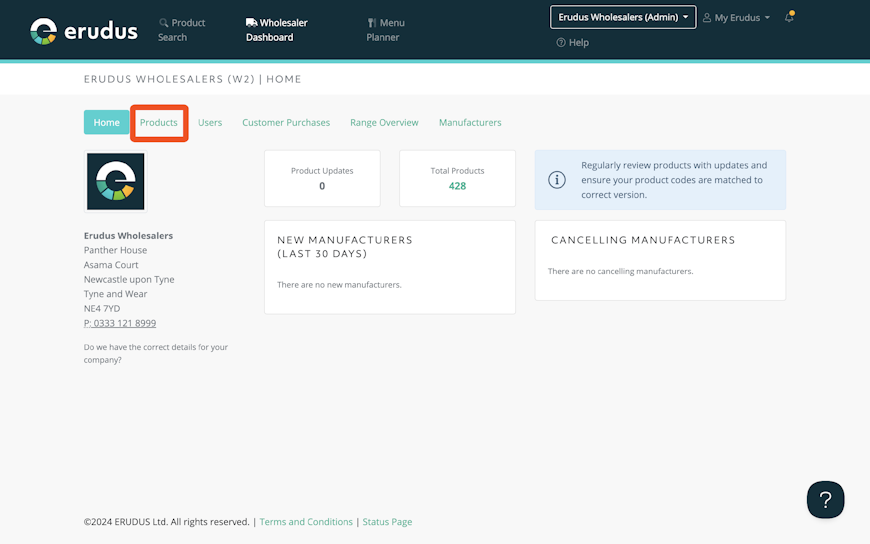
From the Wholesaler Dashboard, click the "Products" button to be taken to the product catalogue.


Step 2
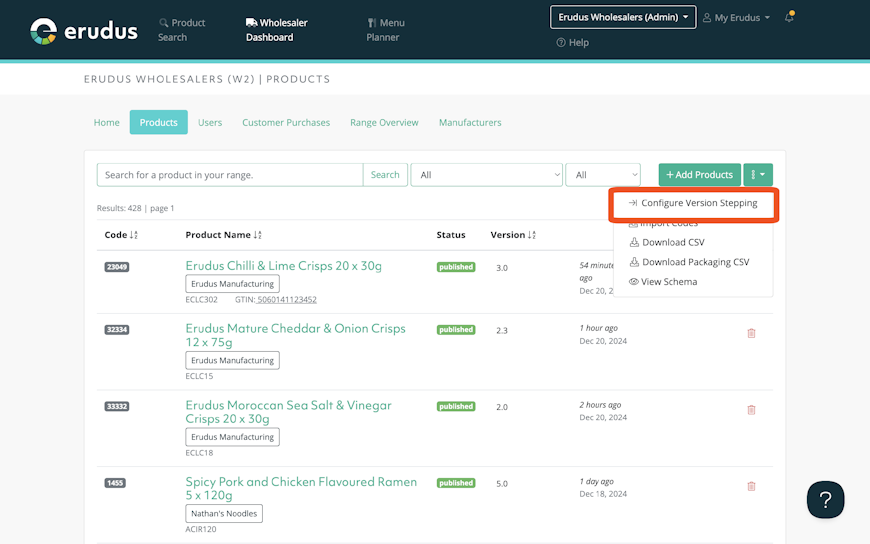
From the product catalogue, click the dropdown menu on the right side of the screen and select the button to be taken to the product catalogue. Click "Configure Version Stepping".

Step 3
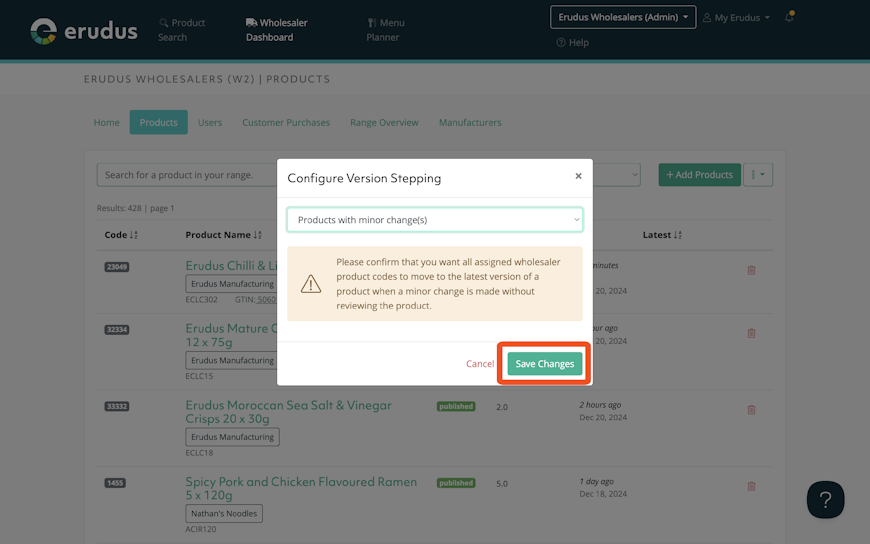
By default, the version stepping configuration will be set to "Manual Version Stepping". You can use the dropdown menu to change the setting for stepping codes to different versions of a product to one of the following options:
- Manual version stepping
- Products with minor changes
- Products with minor or major changes
- All changes excluding allergens
Once you have selected the setting you wish to use for automatic product code stepping, click "Save Changes."

Step 4
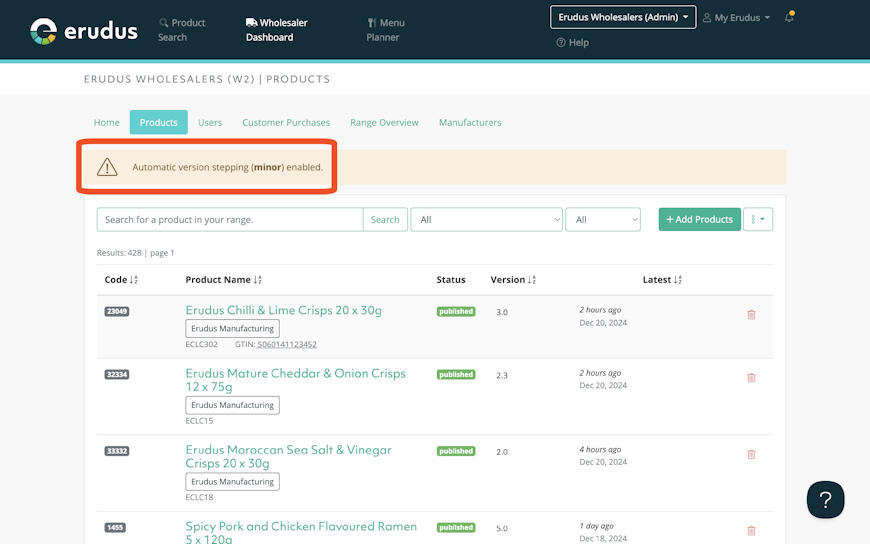
Once the changes have been applied, a banner will appear at the top of the "Products" page to inform users that automatic version stepping is active.
Note: Historic updates will not automatically step to the latest version after settings have been applied, only updates from when the setting has been activated.

Still got questions?
The Erudus Knowledge Base is full of guides like this one on Automatic Version Stepping, taking you step by step through many Erudus functions - from how to add a product to managing brands in Erudus. You can visit Knowledge Base here.
And of course our dedicated Erudus Support Team are always on hand to help and can be contacted on 0333 121 8999 or via email at support@erudus.com.
You may also be interested in…


You may also be interested in…


