How to Search for Specifications Using Quick Search and Query Builder






Finding product specifications in Erudus is easy with the powerful search tools we’ve created for our users - Quick Search and Query Builder. Below we show you how to find the specifications you need using them...
Using Quick Search
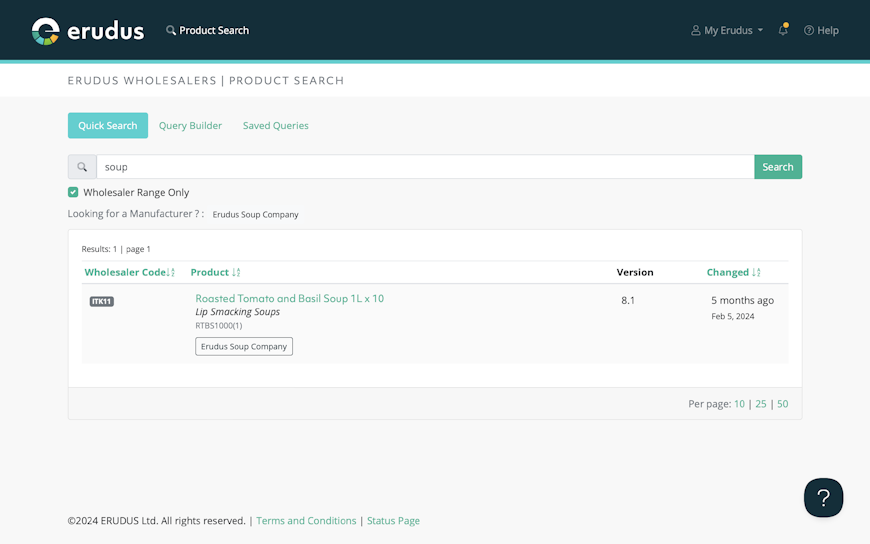
Quick Search is the tool you should use if you know what product you are looking for. To access it, simply click the "Product Search" button at the top of the page after logging into Erudus.
You will then be presented with a search bar – use it to find the product specification you need using the following search parameters:
- The Product's Name
- The Inner or Outer GTIN of the Product
- The Manufacturer's Product Code for the Product
- The Erudus ID of the Product
- The Wholesaler Product Code of the Product (applicable if you are a user who is associated with a Wholesaler account)
Users linked to a Wholesaler account will also have the option of limiting their search to only those products that have a Wholesaler Product Code attached, and can do this by using the "Wholesaler Range Only" checkbox underneath the search bar. Unticking this box will search all products in the Erudus Data Pool regardless of whether or not a Wholesaler product code is attached to a product.


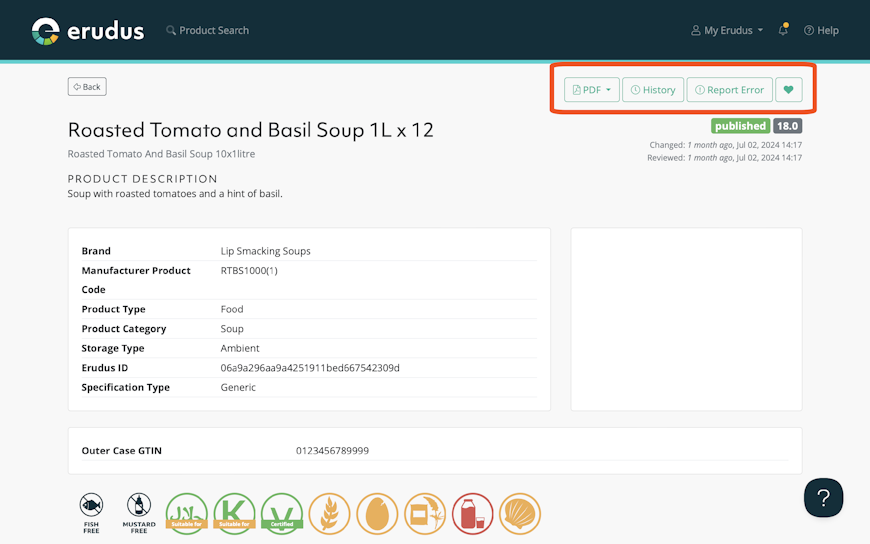
Clicking the name of the product will take you to the product specification, which contains all the product’s information. You can also use the buttons at the top of the page to:
-
Download the specification as a PDF
-
Review the version history of the product and look at previous versions of the specification
-
Report an error about the specification to the manufacturer
-
Add the product to a list

Using the Query Builder
Query Builder is our more advanced search tool, and allows you to find products in the Erudus Data Pool based on parameters that you choose.
Every attribute on an Erudus specification can be used as a parameter for this search, making it easy to find products that meet the criteria you require, quickly and easily.
To access the query builder, follow these steps:
- Select Product Search
- Locate the Query Builder, which will be alongside the option for Quick Search
- Select Query Builder, and you will be presented with the option to start building your query
Below is an annotated screenshot of the Query Builder interface:

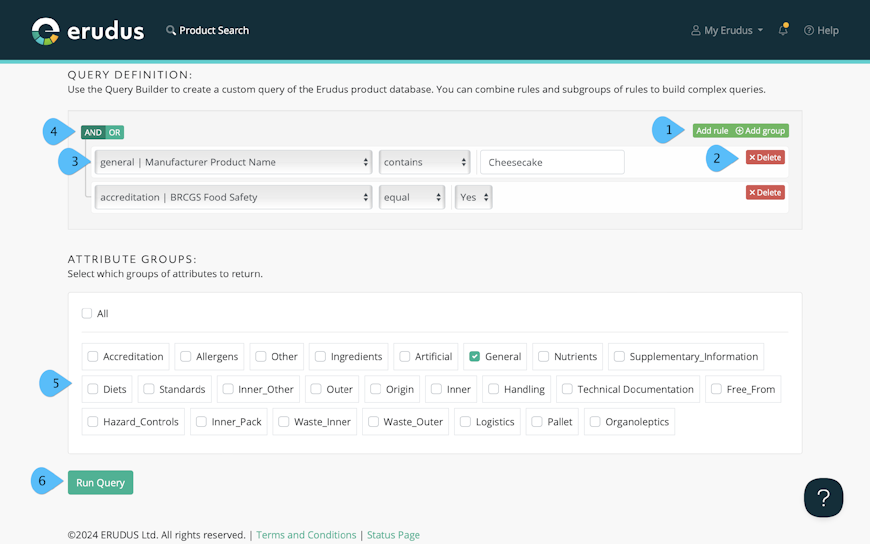
- You can use the green buttons to add rules and groups of rules to a query
- You can delete individual rules from a query using the delete button at the end of the row
- Use the dropdown menu at the start of the rule to select the attribute you wish to use as a search parameter. Once an attribute has been set, the other parameters for the rule will be editable
- When using multiple rules for a query, you can choose “And/Or logic” to be applied to the search. Selecting "And" means that all rules in a query are applied to the search, and all criteria must be met. Selecting "Or" means that each rule will be applied individually when the search is performed and and results are not reliant on the other rules
- Use the checkboxes to choose which datasets are returned for the products that show in the query. This allows you to get only the data that you need
- When you have built your query and chosen which datasets you wish to return, click “Run Query”
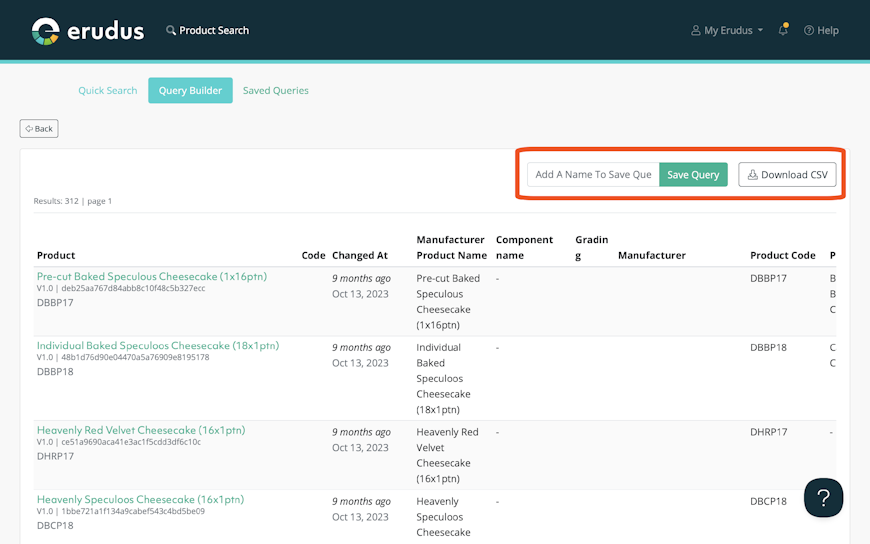
Once you have run your query and you are presented with your results you can click on the name of a product to view the specification, and you can use the buttons at the top of the results to save this query for later use (should you think you will need to run it again in future) or you can download the results of your query as a spreadsheet in a CSV file using the "Download CSV" button

Need more help?
The Erudus Knowledge Base is full of guides like this one on Query Builder, taking you step by step through many Erudus functions - from how to add a product to managing brands in Erudus. You can visit Knowledge Base here.
And of course our dedicated Erudus Support Team are always on hand to help and can be contacted on 0333 121 8999 or via email at support@erudus.com.
You may also be interested in…

You may also be interested in…
Solutions Spotlight: Allergen & Nutritional Data Search
ReadYou may also be interested in…

You may also be interested in…


