How to manage and raise a Product Error in Erudus






Product Errors are a tool within Erudus that enables effective 2-way communication between Wholesalers and the Manufacturers of the products they carry - flagging queries, concerns and errors within the data carried by Erudus.
Here’s what you need to know about reporting and resolving Product Errors...
How to report an error
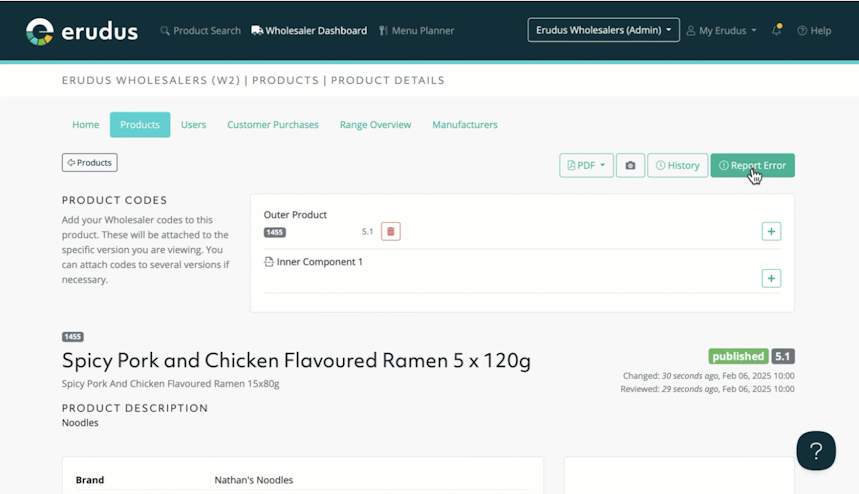
When viewing a product specification, click on the Report Error button at the top of the page to raise an error, and then fill out the form you're directed to. Press submit. It's as simple as that.




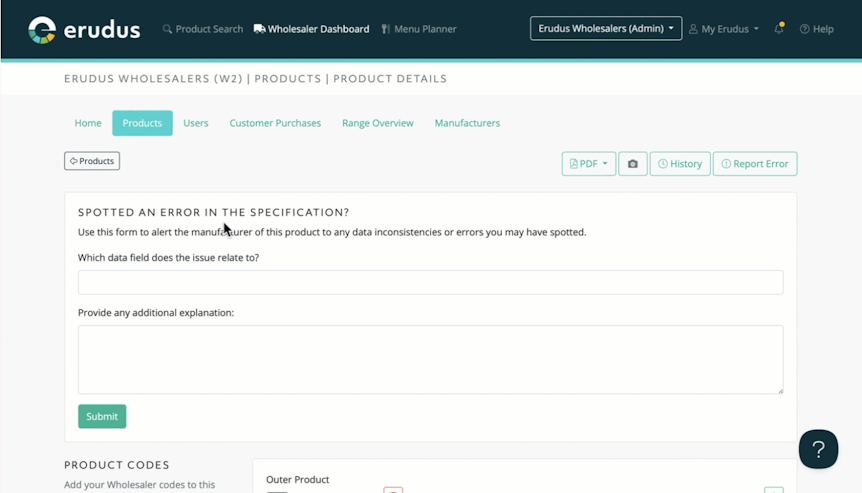
Once you've submitted the error, you’ll see a confirmation banner appear at the top of Erudus.


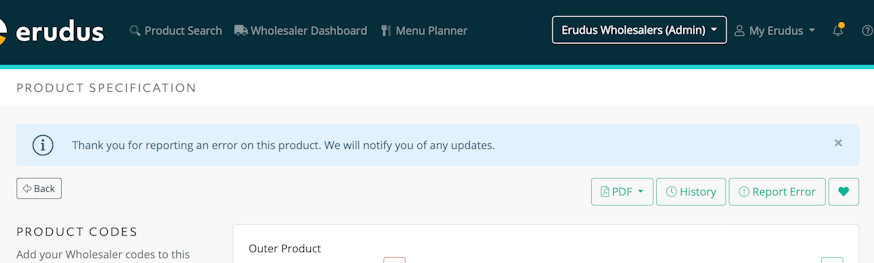
Note: When the Manufacturer has reviewed and responded to the product error, you will receive a notification in Erudus and via Email.
Responding to an error
Once an error has been reported, a Manufacturer may write a message back to offer clarity on the reported error, or they may need further information to help get it resolved.
Here’s how to keep the conversation going to a resolution after initially reporting an error.
Step 1
You can review the errors you have submitted by selecting the “Product Errors" option from your "My Erudus" dropdown menu at the top right corner of the screen.


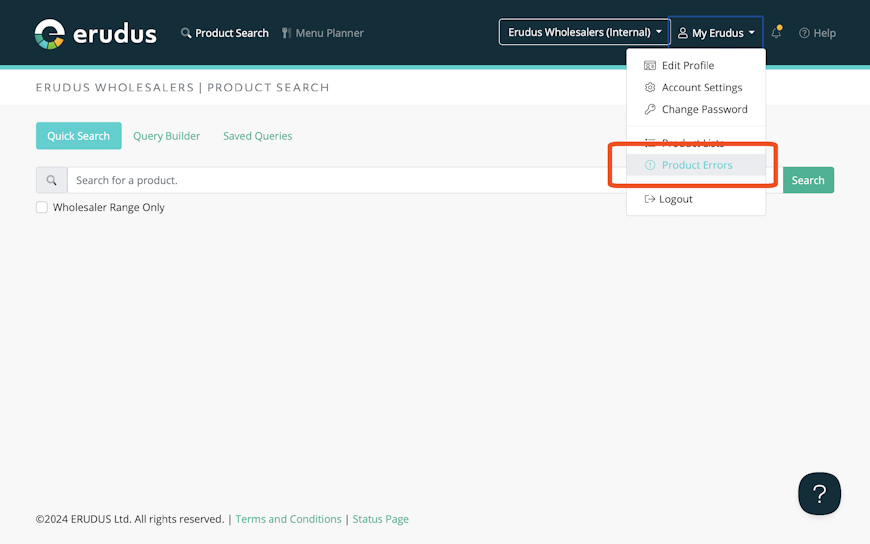
Step 2
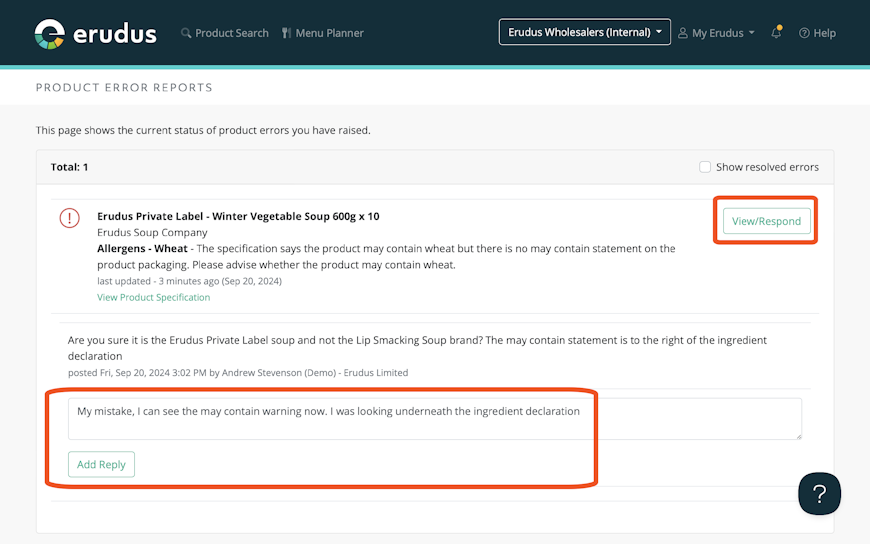
Once in the Product Error Report List, you can click on the green "View/Respond" button next to the error you wish to respond to, and use the text box to write your response before clicking the green "Add Reply" button, and your response will be sent directly to the Manufacturer.

Need more help?
The Erudus Knowledge Base is full of guides like this one on Product Errors, taking you step by step through many Erudus functions - from how to add a product to managing brands in Erudus. You can visit Knowledge Base here.
And of course our dedicated Erudus Support Team are always on hand to help and can be contacted on 0333 121 8999 or via email at support@erudus.com.